
QuickBooks Unrecoverable Error Fix: Complete Guide to Repair & Restore
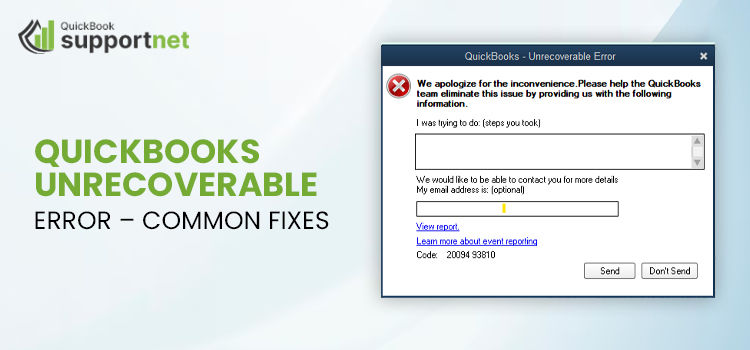
Facing the exasperating QuickBooks Unrecoverable Error message can be a distressing situation for any business. This major problem causes the application to crash suddenly, frequently rendering you unable to open your important company file and interrupting your financial tasks. It’s a genuine cause of alarm for accountants and entrepreneurs, as this QuickBooks Unrecoverable Error usually appears unexpectedly, causing the program to freeze and posing a risk to the reliability of vital financial information. The main reason behind this issue is often a damaged company file, where essential data structures within the . QBW file become inaccessible, but malfunctioning software elements, outdated Windows updates, or even interference from antivirus programs can also lead to this serious problem.
Part 1: Initial Emergency Steps
Prior to attempting any complicated resolutions, begin with these vital first-response measures.
Make a Manual Backup: Find your company file (. QBW) in your documents or its allocated folder. Create a backup copy and store it on a secure external drive or in the cloud. This serves as your protective measure.
Run QuickBooks as an Administrator: Right-click on the QuickBooks desktop icon and select "Run as administrator. " This provides the software with full permissions to the system, enabling it to access and rectify files, which may resolve the error right away.
Update to the Latest Version: Outdated applications are a frequent cause of errors. Open QuickBooks (if possible), navigate to Help > Update QuickBooks Desktop > Update Now. Install all available maintenance and payroll updates, followed by a computer restart.
Part 2: Systematic Repair Method
If the error continues, follow these specific solutions in sequence. The official QuickBooks Tool Hub is an essential resource for this purpose.
Step 1: Download and Utilize the QuickBooks Tool Hub
Obtain the free Tool Hub from Intuit's official site. Within it, utilize these two essential tools:
Quick Fix my Program: Located under the "Program Problems" tab, this option repairs defective QuickBooks installation files.
QuickBooks File Doctor: Found under the "Company File Issues" tab, this tool is designed to identify and fix common data corruption within your . QBW file. Run this tool on the computer where the file is stored.
Step 2: Manually Address the Transaction Log (. TLG) File
A corrupted transaction log is a common issue. Go to the folder where your company file is located. You should find a file with the same name but a . TLG extension. Rename this file by appending . OLD to the end (for instance, MyCompany. TLG. OLD). This action will prompt QuickBooks to generate a new, clean transaction log the next time you open the file.
Step 3: Initiate QuickBooks Using the ALT Key Method
This unique launch approach skips certain startup scripts. Press and hold the ALT key while you double-click the QuickBooks icon. Keep the ALT key pressed until the "No Company Open" window comes up, then attempt to access your file.
Step 4: Repair Your Company File Information (Use with Care)
This is an advanced tool for significant data damage. Make sure you have a verified backup ready first.
In QuickBooks, navigate to File > Utilities > Rebuild Data.
Accept the warning by clicking OK—QuickBooks will automatically back up your data before continuing.
The duration might be lengthy for larger files. After it's finished, use File > Utilities > Verify Data to check if the rebuild was successful.
Part 3: The Last Restoration and Prevention
Restoring from a Backup
If every repair effort is unsuccessful, your best and most dependable option is to recover from a fresh backup.
Navigate to File > Open or Restore Company.
Choose "Restore a backup copy" and hit Next.
Opt for "Local backup" and find your latest stable . QBB backup file.
Follow the instructions to finalize the restoration in a new location.
Prevention: Strategies to Safeguard Your Data in the Future
Automate Backups: Schedule automatic backups (File > Backup Company > Create Local Backup) to a safe external destination. This must be done.
Conduct Regular Maintenance: Annually utilize the Condense Data utility (File > Utilities > Condense Data) to archive outdated transactions and keep your active file smaller and less vulnerable to corruption.
Close Properly: Always use File > Close Company before leaving QuickBooks. Avoid using Task Manager to forcefully close the program or shutting down your computer while it's active.
Maintain Your System: Ensure that Windows and all drivers are updated, and confirm you have enough hard drive space. Set your antivirus software to exclude your QuickBooks program and company file folders from real-time scanning.
Final Summary
Resolving a QuickBooks Unrecoverable Error involves a systematic approach: begin with immediate first-aid (permissions, updates), escalate to direct repair using the QuickBooks Tool Hub and . TLG rename, and if needed, resort to the drastic measures of Rebuild Data or Backup Restoration. The ultimate remedy isn't solely in repairs but also in maintaining a disciplined schedule of automated backups and regular file upkeep to keep your business data safe and available. If these methods do not fix your problem, reaching out to QuickBooks Support or a certified QuickBooks ProAdvisor for personalized data recovery help is advised.

Comments